virtual try-on to increase e-commerce conversion for beauty brands
How virtual try-on increases e-commerce conversion for beauty brands and retailers
Lipstick and foundation are categories of doubt: shoppers cannot tell whether a shade suits them, so they hesitate, abandon or return. This guide shows how MaIA Try-On answers that doubt on the product page and in the cart, and how to measure the lift with a simple A/B test.
Anyone selling makeup online lives with a paradox: the product photo is perfect, the description is complete, the price is competitive — and the shopper still stops at the buy button. In lipstick and foundation, the question that stalls the cart is not "is this product good?". It is "does this shade suit me?". Virtual try-on to increase e-commerce conversion for beauty brands exists to answer exactly that question, in the place and at the moment it comes up.
This guide is for people who run a beauty brand or retailer and want to treat virtual try-on as what it is: a conversion lever that gets measured. We will go through the problem, how MaIA Try-On works, where to place it and how to measure the lift without relying on someone else's numbers.
The problem: shoppers cannot see the shade on their own face
In a physical store, shade doubt is settled in seconds: swatch on the back of the hand, a look in the mirror, decision made. Online, the shopper has a square swatch and a model photo with different skin and different light. Three behaviours follow, and your sales report already knows them:
- Hesitation. The shopper adds to the cart and never checks out, or never adds at all. Baymard calculates an average documented cart abandonment rate of 70.22% in e-commerce, consolidating dozens of studies (Baymard Institute, Cart Abandonment Rate Statistics). In colour categories, uncertainty about the shade is a real part of that hesitation.
- Defensive buying. She orders two shades to return one, or always buys the same shade and never tries the launch.
- Wrong-shade returns. The product arrives, does not match, goes back. Logistics cost, an opened product that cannot be resold and a shopper frustrated with the brand rather than with her own choice.
Virtual try-on does not touch price, shipping or the packshot. It removes one specific friction — the visual doubt — that no product-page copy can remove. That is why the effect shows up in conversion, not just in time on page.
That mechanism is what explains the figures the market publishes. Brands reported a 2.5 times increase in sales conversion after implementing virtual try-on, according to Perfect Corp's AI trends report (Retail Dive, September 2024). It is a vendor's figure, not an independent study, and it is not a MaIA result — we have already written about how to read that number. It justifies the test; your own result is measured in your store, as shown below.
How MaIA Try-On works
MaIA Try-On applies the product to the shopper's own image. Only the makeup area changes: skin, teeth and features stay as they are. That can happen in two ways, with the same model behind both.
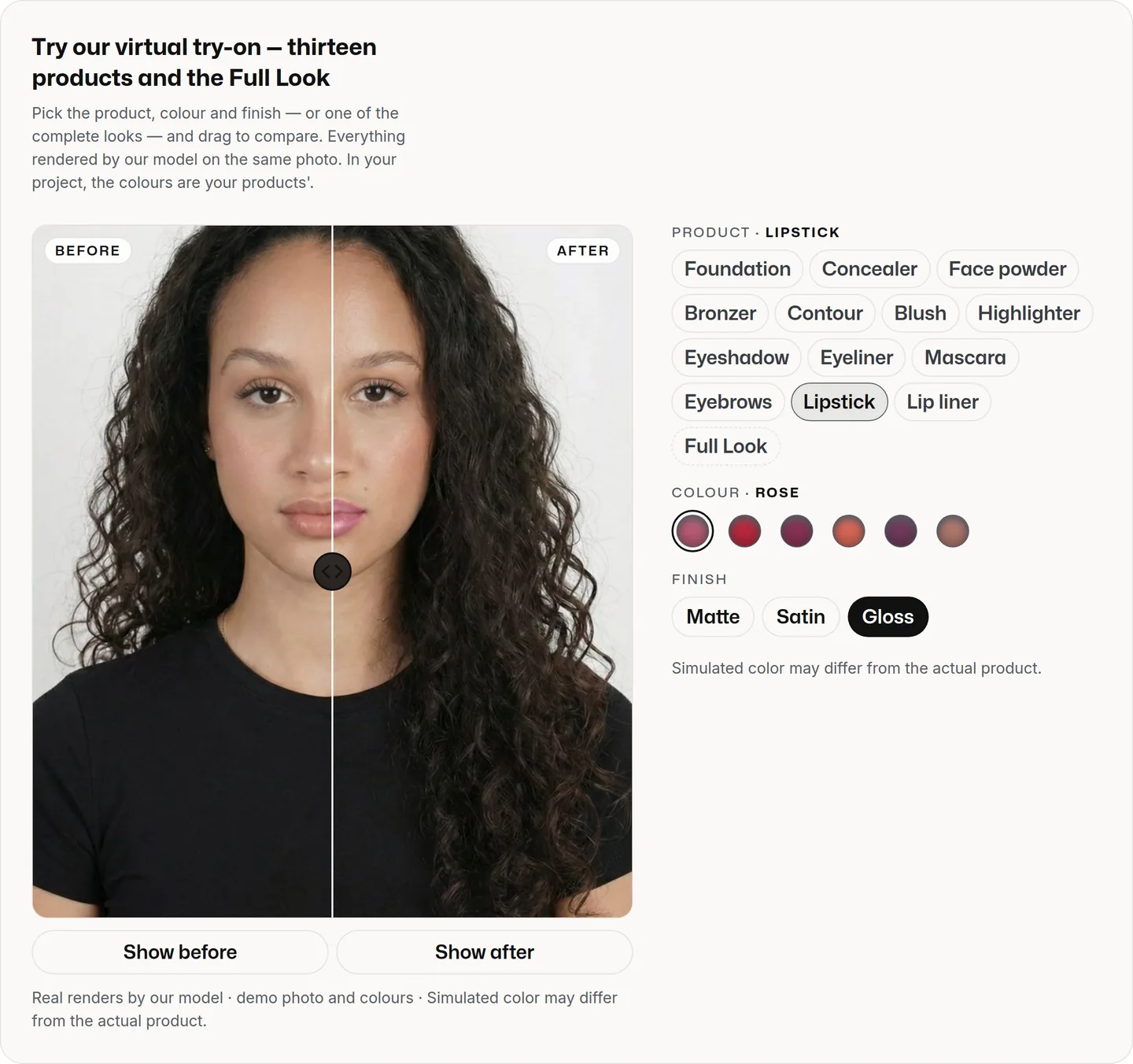
From a selfie
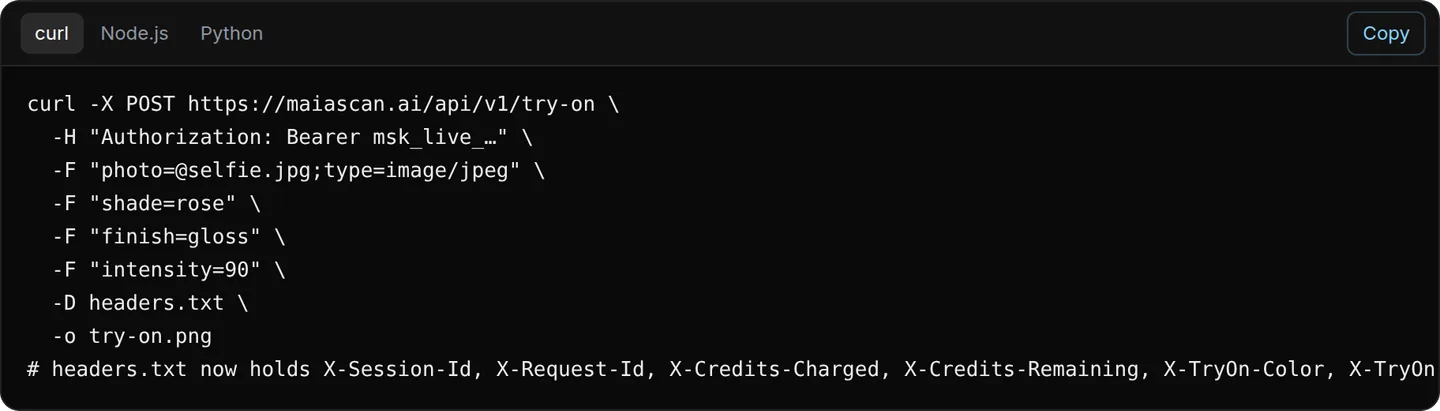
The shopper uploads a front-facing photo; MaIA Try-On returns the same photo with the product applied. This is the API path: your application sends the image and the product and receives the finished render. It works in any channel where a photo exists — product page, quiz, WhatsApp support — and it is the fastest way to start, because it is self-service.
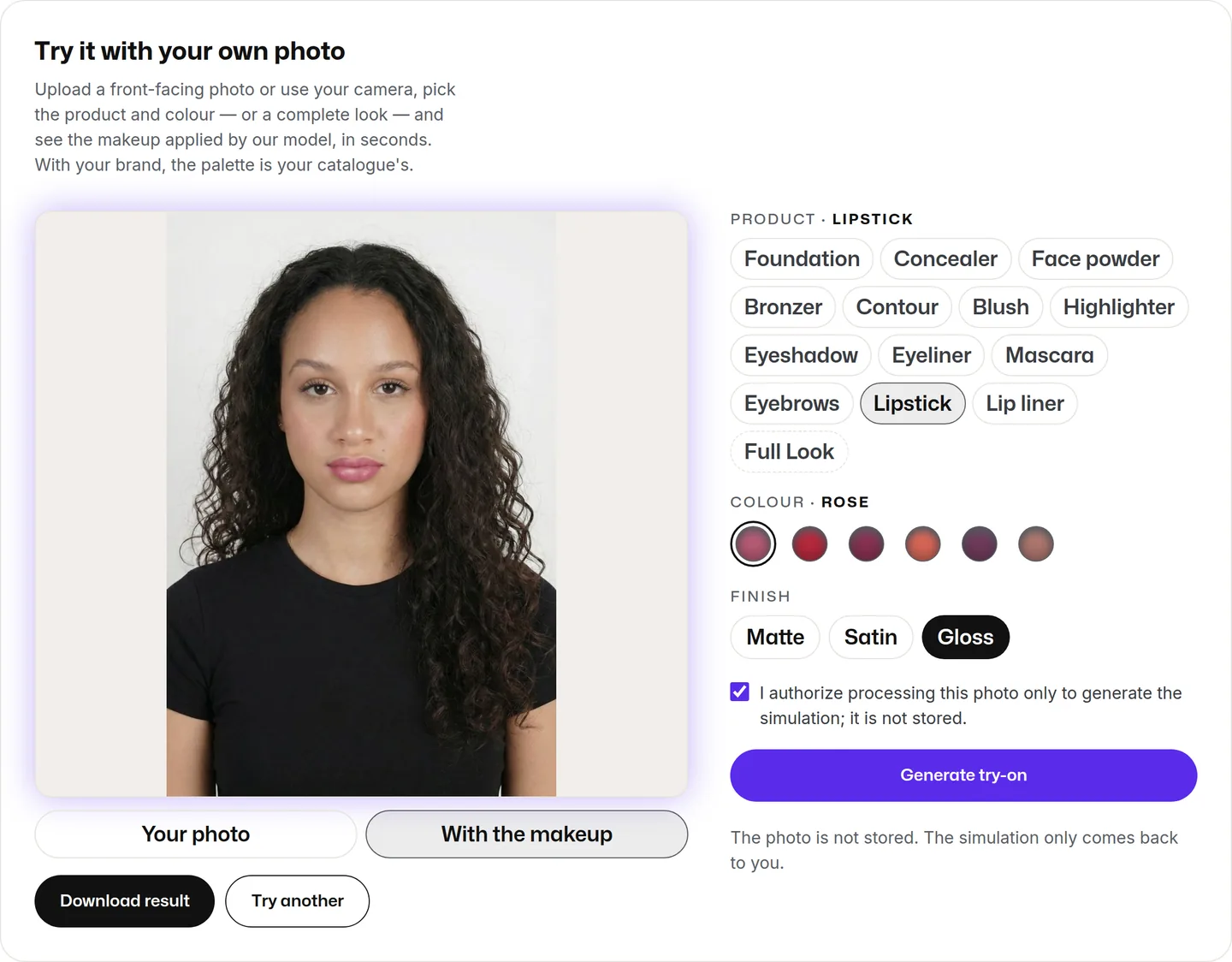
From the live camera
For the mirror experience, MaIA Try-On exists as a browser SDK: the shopper turns the camera on, picks the product and sees the result frame by frame, with the before/after divider. The preview runs locally, on her device — the image is never sent to any server. The SDK is in early access and is enabled account by account.
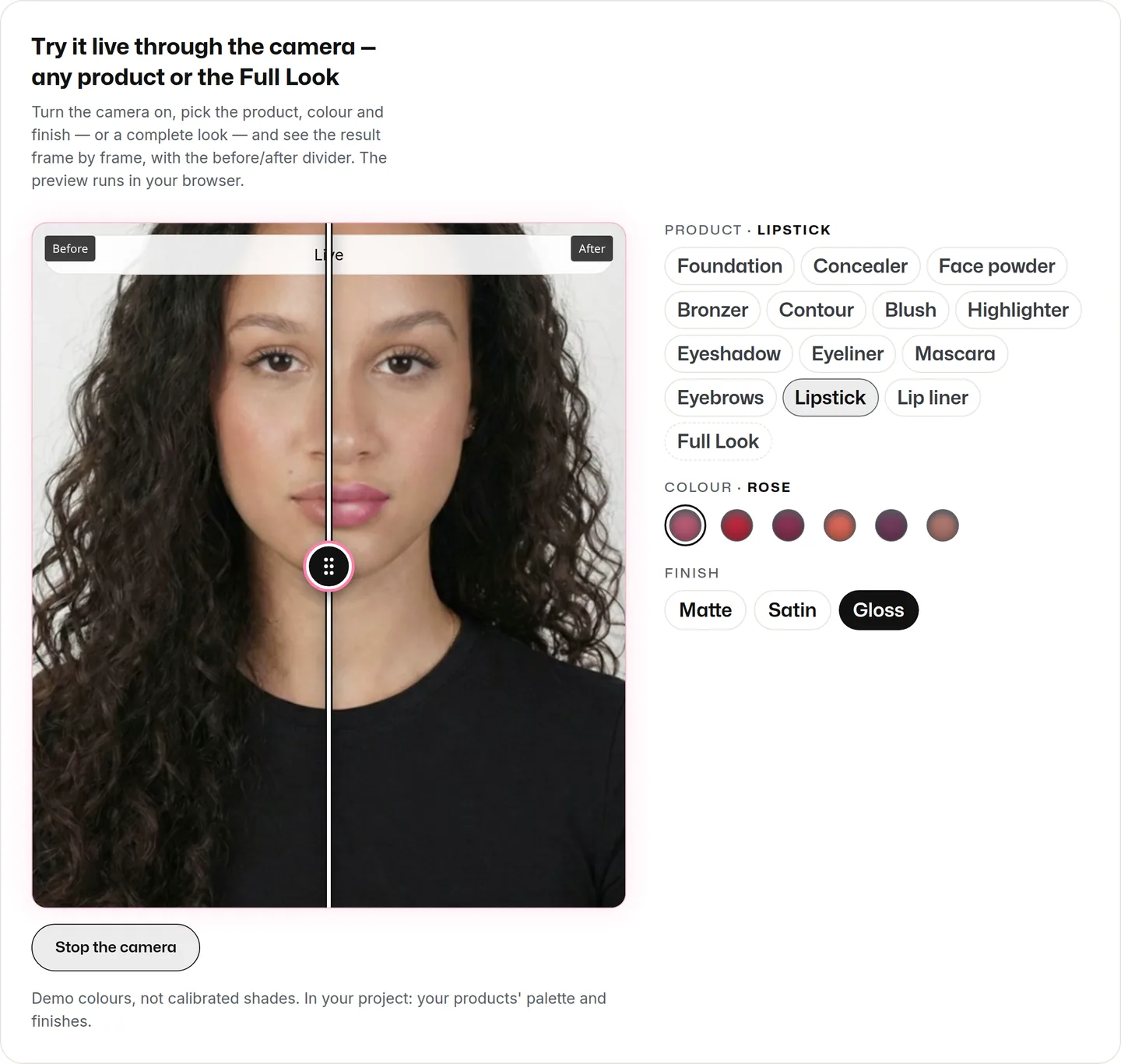
Thirteen products and the Full Look
Lipstick, foundation, blush, face powder, concealer, eyeshadow, mascara, eyebrows, eyeliner, bronzer, contour, highlighter and lip liner — plus the Full Look, which combines several layers in a single render. Any #RRGGBB colour is accepted, with intensity and finishes per product (matte, satin and gloss for lipstick, for instance). In your project, the palette is calibrated with the real products of your catalogue, so what appears on screen matches the SKU that goes into the cart.
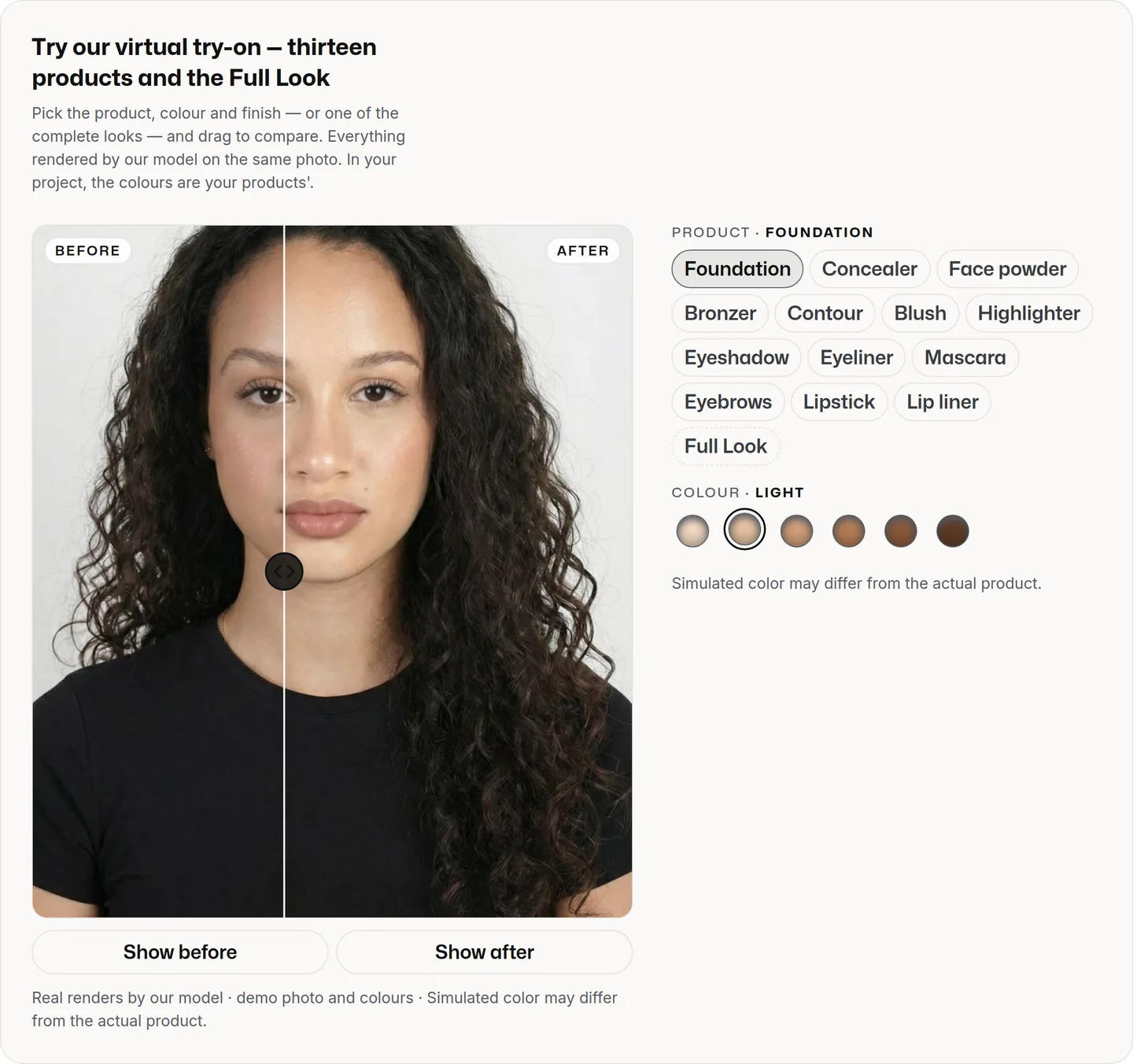
Embed or API
You choose how it enters your store:
- Browser component (SDK). A package your brand hosts on its own origin, mounted in an element of the page. It already brings the tabs for the thirteen products and the Full Look, the live and photo modes, the camera and upload buttons, the colour swatches and the before/after divider. Integration guides for JavaScript, React and Angular live in the signed-in area.
- Photo API. One
POST /api/v1/try-oncall with the photo and the product; the response is the rendered image. You build the interface your way and reuse the same call on the site, in the app, in a quiz or on WhatsApp.
Where to place virtual try-on so it affects conversion
Virtual try-on hidden on a brand page does not convert. It has to sit where the shade doubt happens.
On the product page
The most direct placement and the easiest to measure. The "try it on my face" button sits next to the shade selector, not in the footer. When the shopper picks a shade in the try-on, the page selection follows, and the add-to-cart button already carries the right SKU. Three practical rules:
- Visible without scrolling, next to the shades.
- One tap to open — no sign-up before trying.
- Returns to the page with the chosen shade already selected.
In the cart
The cart is where hesitation turns into abandonment. For items with colour variants, a "check the shade before you check out" next to the product reduces defensive buying (two shades to return one) and last-minute drop-off. At this point in the journey the shopper has already chosen the brand; the try-on confirms the colour.
Quiz and WhatsApp
If your operation sells through a quiz or through WhatsApp support, the photo API lets you answer "is this shade for me?" with an image, in the same conversation. It is not the focus of this guide, but it is the same mechanism in another channel.
How to measure the lift: a simple A/B test
The most common mistake is comparing shoppers who used the try-on with those who did not. Whoever clicks to try is already more engaged; the difference will look huge and will not be the tool's effect. Measure exposure, not usage.
The setup
- Session-level split, 50/50. Half of the visits to the category's product pages see the version with the try-on button (group B); the other half see the usual page (group A). Any experimentation tool, or a flag in your front-end, will do.
- Same category, same period. Start with one shade category — lipstick is the fastest to calibrate — and run both versions at the same time, for at least two full weeks, to cover weekdays and weekends.
- Four metrics, in this order. Add-to-cart rate, session conversion rate, average order value and wrong-shade return rate (this one arrives weeks later; record the return reason).
- Three extra events.
tryon_open,tryon_renderandtryon_shade_selected, so you know how many people in group B found and used the try-on. If few find it, the problem is placement, not the try-on.
The reading
Compare B against A on add-to-cart and conversion. If group B converts more and the difference holds across the weeks, the try-on is paying for its own space on the page. Then repeat the test in the cart and in the second category (foundation). Each brand's result depends on catalogue, traffic and channel — which is why the measurement is yours, not a report's.
How to start
- Create your company account at maiascan.ai. It gives access to the signed-in area, the full documentation and credits.
- Pick the path. Photo API: buy a credit package, generate the key and call
POST /api/v1/try-onwith the demo shades or with your catalogue colours in #RRGGBB. Browser SDK: request access in the signed-in area and host the package on your origin following the integration guide. - Add the try-on to one product page template of a shade category, with the button next to the shades.
- Run the A/B test for two weeks, with the four metrics and the three events above.
- Expand to the cart and to foundation, and bring the calibrated palette of your products into the project.
Try the virtual try-on right now on the MaIA Try-On page, with the demo photo, the camera or your own photo. When you want to see the effect on your shades and your page, create your company account and start the test.
Frequently asked questions
Does virtual try-on only work with a live camera?
No. MaIA Try-On works from an uploaded selfie (through the API, which returns the photo with the product applied) and from the live camera in the browser (through the SDK, which renders on the shopper's device). Both paths use the same model and the same palette.
Which products does the virtual try-on cover?
Thirteen simulators — lipstick, foundation, blush, face powder, concealer, eyeshadow, mascara, eyebrows, eyeliner, bronzer, contour, highlighter and lip liner — plus the Full Look, which combines several layers in one render. Colours are free in #RRGGBB, with intensity and finishes per product.
How do I know whether virtual try-on increased conversion in my store?
With a session-level A/B test: half of the visits see the product page with the try-on button, half see the usual page, in the same category and period. Compare add-to-cart rate, conversion rate, average order value and wrong-shade returns between the two groups.
Is the shopper's photo stored?
In the browser SDK, the preview runs locally and the image never leaves the device. In the photo API, the image is sent only to produce the render that comes back in the response. The API documentation describes data handling in detail.
Where should I start?
Create your company account, pick the path (photo API or browser SDK), add the try-on to one product page template of a shade category — lipstick is usually the fastest — and run the A/B test for two weeks before expanding to foundation and the cart.